Getting started
- Click "Files" in the left sidebar
- The "Upload" button at the top right → the upload window
- Or drag a file from outside onto the page: a "Drop files here" overlay appears, and the upload starts the moment you drop
- Up to 10 at a time
- Regular files: by plan — FREE 10MB / BASIC 50MB / PRO 200MB
- Audio: up to 500MB
- The queue in the upload window shows each file's progress and status (audio shows "Transcribing")
- Uploaded files are added to the list. Find them with filter · sort · search
Feature guide
Top controls
| Element | What it does |
|---|---|
| List / Grid | Switches the view |
| Sort dropdown | Newest / Oldest / By name / By size |
| Upload | Opens the upload window |
| Search bar | Searches file names only (case-insensitive) |
Filters
Type filter (by extension)
| Filter | Catches |
|---|---|
| All | Every file |
| Pinned | Files you've pinned |
| Documents | PDF · DOCX · TXT |
| Spreadsheets | XLS · XLSX · CSV |
| Audio | MP3 · WAV · M4A |
| Images | PNG · JPG · JPEG · GIF · WEBP |
Images can't be uploaded right now, so the Images filter only matters if you have files uploaded earlier. PPTX · HWPX · MD · JSON upload fine but aren't in the type filter — find them under "All" via search or tags.
Link filter / tag sidebar
- Link filter — All / Simulation / Workspace / Persona / Unlinked
- Tag sidebar — shows tags with their counts. Click to show only files with that tag (click again to clear)
Supported file formats
| Kind | Extensions |
|---|---|
| Documents | PDF · DOCX · TXT · MD |
| Spreadsheets | XLS · XLSX · CSV |
| Audio | MP3 · WAV · M4A (up to 500MB) |
| Presentation | PPTX |
| Other | HWPX · JSON |
- Up to 10 at a time
- Regular files: by plan — FREE 10MB / BASIC 50MB / PRO 200MB
- Audio: up to 500MB
- ⚠ The old
.doc/.hwpformats aren't supported — convert to.docx/.hwpx(or.pdf) and upload - ⚠ Image files (PNG · JPG · GIF · WEBP, etc.) can't be uploaded right now — knowledge is extracted from text, so image reading is still in the works
The upload window
Opens from the Upload button or by dragging files in. The queue shows each file's status, and each status lets you do the following.
| Status | Display / available action |
|---|---|
| Waiting · uploading | Progress (%). Cancel (X) → stops, "Canceled" |
| Transcribing | "Transcribing… about N sec left" (audio) |
| Failed | Error message + Retry (↻) → re-upload the same file |
| Done | "Done". Remove from list (X) → removes from the queue only (the file stays) |
- When there are done/canceled items, "Clear finished" appears at the top of the window to clear them all at once
- You can't close the window while an upload is in progress
File list item
Clicking a file selects it right away (a checkbox on the left shows the selection; pick several to act on them from the bottom bar — see "Bulk actions"). Shows a format icon · name · size · date. Pinning adds an amber pin. An External (external share on) badge. Tag chips (3 in list, 4 in grid; +N if more). A ⋯ menu on the right for view details · rename · pin · delete.
More menu (⋯ or right-click)
| Menu | What it does |
|---|---|
| View details | Opens the file's detail window (info · connections · sharing/tags · knowledge). Audio has its own window (below) |
| Rename | The filename turns into an input (all text selected). Enter to save / ESC to cancel; the extension is kept automatically. "File renamed" |
| Pin / Unpin | Toggles immediately. "File pinned" / "Unpinned" |
| Delete | Delete confirmation window (below) |
Download isn't ready yet, so it's hidden from the menu.
Keyboard shortcuts
ESC — closes in order: delete confirmation → detail window → inline rename → more menu → sharing bar → selection (clears it)
Detail window (⋯ menu → View details)
Choosing "View details" from a file's ⋯ menu opens a different window by kind. (Clicking a file selects it, so use the ⋯ menu to see its contents.)
Default detail window (everything but audio)
| Area | Content |
|---|---|
| File info | Format · size · upload date · pinned |
| Link info | Number of linked simulations · workspaces |
| Sharing & tags | "Personas that know this file" + tags (below) |
| The file's knowledge | The knowledge extracted from this file (below) |
| Bottom buttons | Enrich personas · Delete |
Audio detail window (MP3 · WAV · M4A)
3 tabs. When clicked:
| Tab | Content · what it does |
|---|---|
| Info | Basic info (format · size · created) · transcription info (duration · speaker count · language) · link info |
| Transcript | Per-speaker utterances + audio player + speaker panel + find/replace (detailed below) |
| Summary | Generate summary (when none) / Regenerate (when present) → markdown summary. TXT / PDF download |
Transcript tab — speaker panel
| Button | What it does |
|---|---|
| AI guess | The AI guesses speaker names. An "AI" badge sits next to the name. "Speaker names guessed by AI" |
| Add speaker | Adds a new speaker row |
| Click a speaker name | Edit in place → Enter to save ("Speaker name saved") / ESC to cancel |
| Merge into another speaker (right-click) | The menu lists other speakers → pick one and they merge immediately (no confirmation) |
| Previous/next utterance (▲▼) | Scrolls to and highlights that speaker's utterances |
Transcript tab — editing utterances
- Find/replace — typing highlights matches in yellow + "N found"; Replace all swaps them at once
- Right-click an utterance → change speaker / split at a point (after selecting text) / merge with the utterance above or below
Transcript tab — sync to a simulation
- Select a simulation at the bottom → pick a target and "Sync to simulation" → when done, "Last synced: date (N segments)" shows and the button becomes "Re-sync"
- Download transcript → saves as
_transcript.txt
Sharing & tags
The "Sharing & tags" area of the default detail window. After changes, Save changes ("Saved").
Personas that know this file
| Setting | Badge color | Meaning |
|---|---|---|
| All personas | Green | Every persona you made knows this file and uses it in answers |
| Selected personas | Blue | Only the personas you pick know it; the rest don't |
| Private | Orange | No persona knows it; only you see it in Files |
Picking "Selected personas" reveals a "Personas to tell about this file" picker.
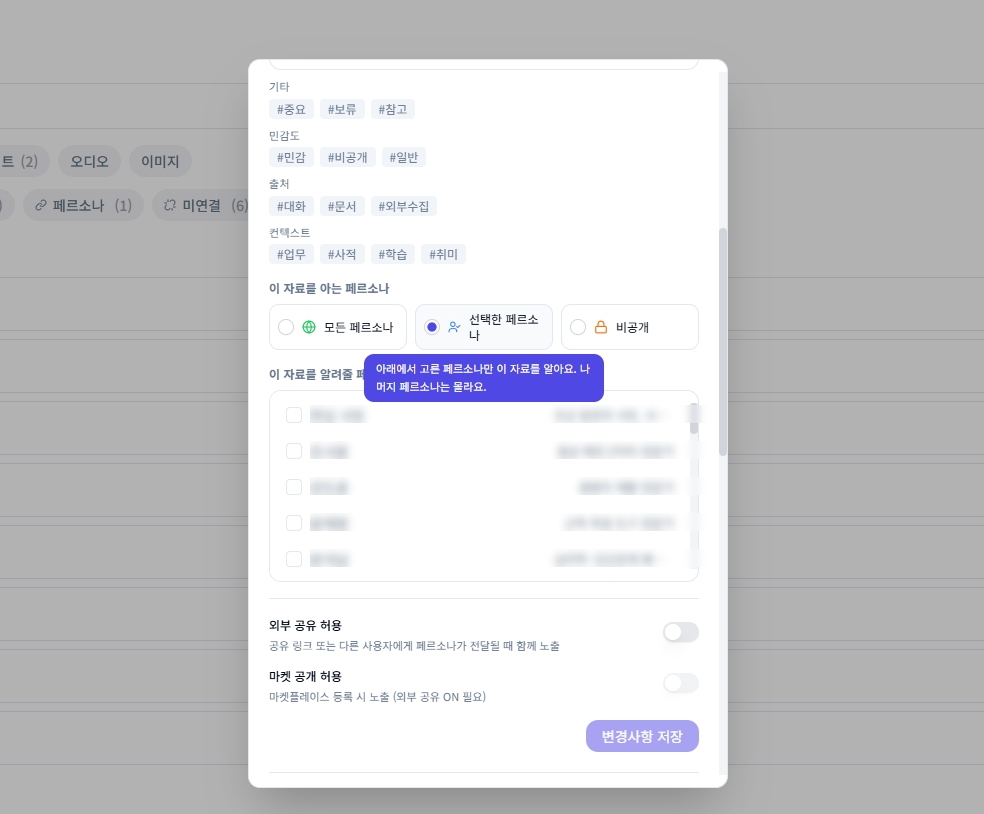 The "Personas that know this file" setting in the file detail window (All / Selected / Private).
External share
- Allow external share — the file's knowledge is included when you share a link or hand off a persona
The file's knowledge
When you upload a file, the AI reads it and turns it into knowledge.
Processing steps
- Split into segments — cut the file into meaning units so it can be searched later
- Pull key facts — pick out important facts like people, places, events, and concepts
- Sort into topic areas — start from the base topic areas (Relationships · Work · Learning · Health · Hobbies · Values · Daily life · Memories · Other), and for an area not yet covered — like Finance, Assets, Legal — create a new topic area automatically (tables and diagrams are handled too)
Processing states
| State | Display |
|---|---|
| Reading | "Reading the file to build its knowledge. Just a moment…" |
| Pulling facts | "Extracting facts from N segments…" (auto-refreshes every 4s) |
| Too little text | "There wasn't enough text to build knowledge." |
| Done | Fact count · segment count · topic-area count + topic-area chips + a list of facts |
Upload diagnostic card — summarizes the result right after upload: split into N segments (on partial failure, "Re-learn") · recognized N facts (new · existing) · sorted into N topic areas · a "View knowledge" button
Per-topic-area detail (confirm · rename · delete) is handled in the constellation of a persona's Knowledge tab.
Enrich personas (speaker extraction)
The "Enrich personas" button at the bottom of the default detail window opens a speaker-extraction window, where speakers are pulled out automatically. Each speaker card has two buttons:
- Create as persona → the "Create a persona from a speaker" window (AI avatar · save the utterances as first knowledge · analyze personality/speaking style/the 5 axes) → Create → "Persona "name" created"
- Apply to a persona → the "Reflect speaking style & personality" window. Pick an existing persona and Apply (merge mode: append / replace)
To have a persona use the file's content itself as knowledge, don't use Enrich personas — share it under the file's "Personas that know this file" instead. Enrich personas only applies speaking style and personality.
Bulk actions (select several files)
Clicking a file selects it (there is no separate "selection mode"). Once one or more are selected, a button bar sits at the bottom:
| Action | What it does |
|---|---|
| ✕ (Clear) | Clears the whole selection (ESC works too) |
| Select all | Selects everything in the current filter |
| Pin / Unpin | Toggles pins all at once |
| Sharing | Change visibility (All / Selected / Private) and external share for the selected files at once |
| Edit tags | Tag window — Add / Remove / Replace, then Apply ("Tags updated for N items") |
| Delete | Delete confirmation window (below) |
Delete confirmation window
Pressing Delete shows what will be affected, with choices.
- If shared: "N personas are sharing it — all are affected" / a note about segments
- The default choice is "Delete the file and all knowledge traces (recommended)" — clears the file, segments, summary, and fact links. (A fact itself stays if it also appears in another file)
- Delete → "Deleting…" then done
Empty states
| State | Display |
|---|---|
| No files | "No files" + "Upload files to use in simulations" + "Upload files" |
| No search/filter results | "No search results" + "Reset filters" |
Tips
A file is linked to a simulation or workspace, and — separately — shared with personas via "Personas that know this file" (reflected in the knowledge). Text files can additionally enrich speaking style and personality via speaker extraction.
A pin + a set tag on your key files makes search and filtering much faster.
Audio files in the hundreds of MB take time to upload and process. Don't close the window during an upload.
Files you uploaded but never linked or shared just take up storage. Tidy them now and then.
FAQ
Documents PDF·DOCX·TXT·MD / Spreadsheets XLS·XLSX·CSV / Audio MP3·WAV·M4A (up to 500MB) / Presentation PPTX / Other HWPX·JSON. Regular files are by plan (FREE 10MB / BASIC 50MB / PRO 200MB), audio up to 500MB, up to 10 at a time. The old .doc/.hwp formats and image files (PNG·JPG, etc.) aren't supported.
Choose "View details" from the audio file's ⋯ menu to open a window with three tabs — Info, Transcript, Summary. On the Transcript tab you can AI guess (auto speaker names), add/rename/merge speakers, split/merge utterances, find/replace, sync to a simulation, and download the transcript. On the Summary tab you can generate an AI summary and download it as TXT/PDF.
Both turn speakers into personas, but a text file's "Enrich personas" applies speaking style and personality only ("Apply"). To use the file content itself as knowledge, share it under "Personas that know this file".
Download is in the works, so it's hidden from the more menu and detail window. (Audio transcripts and summaries can be downloaded as TXT/PDF from their tabs.)
When you upload a file, the AI splits it into segments, pulls out key facts (people, places, events, concepts), and sorts them into topic areas (a new area may be created if none fits). See it in the "The file's knowledge" area of the detail window and in the constellation of a persona's Knowledge tab.
- "There wasn't enough text to build knowledge" — e.g. a PDF that's only images, with little extractable text
- "Stored N segments but no facts were extracted" — it was indexed for search, but there were no clear facts (it's still used for search)
The persona must be included in the file's "Personas that know this file" setting. "All personas" = everyone, "Selected personas" = only the ones you pick, "Private" = goes into no knowledge.
Simulation results stay, but the parts that referenced the file can no longer reference it. It's also cleared from the knowledge of any personas it was shared with.
Related articles
- Workspaces — link files to simulations & workspaces
- Personas — share files into a persona's knowledge · enrich speaking style & personality via speaker extraction
